Managing supplier interactions
This process covers the management of clarifications between the Suppliers and the Buyer as well as Suppliers submitting responses to the RFx.
The prospective supplier can use P2i to liaise with the project's Procurement Authority and seek clarification when required – correspondence between the Supplier and project's Procurement Authority is managed and recorded within P2i. If the project's Procurement Authority requires further information from the evaluation panel, they liaise with the panel off-system or via the discussion board on P2i.
Suppliers submit their response to the RFx by completing the applicable response template and submitting the response via P2i prior to the RFx closing date (or within the grace period determined by the project's procurement authority).
-
Request/Receive Clarifications - Suppliers may submit clarification requests to the buyer concerning the RFQ prior to submitting a response to the RFQ through system messages.
Buyer replies to each of the clarification questions will typically be published so that all suppliers can view the clarification question and the response provided. However, the procurement authority has discretion to restrict the reply to the supplier who asked the question if appropriate.
-
Manage Supplier Interactions - All supplier interactions are received and managed by the project's Procurement Authority.
In line with procurement guidelines, all replies to Supplier clarification questions will typically be published / viewable to all prospective suppliers so that all prospective suppliers have access to the same information in relation to the RFx and no bias or perceived bias can occur. However, the procurement authority has discretion to restrict the reply to the supplier who asked the question only if it is appropriate and complies with procurement guidelines.
If Procurement Services or the Procurement Authority cannot answer a clarification question directly, they may consult with the Evaluation Panel Chair off-system to form a reply.
-
Manage Clarification Questions - The Evaluation Panel Chair receives a request for clarification from the project's Procurement Authority off-system (likely via email or in person) or via the discussion board in P2i.
The Panel Chair may liaise with Panel Members off-system or via the discussion board as appropriate to assist in forming a reply to the project's Procurement Authority, and then provides a reply to the project's Procurement Authority off-system or via the discussion board.
-
Request/Respond to clarification questions - Evaluation Panel Member reviews the request from the Evaluation Panel Chair and provide information to the Panel Chair off-system or via the discussion board.
-
Receive Supplier Responses - The project's Procurement Authority receives all the supplier responses to the RFQ.
The response will normally be in the form of a completed response template within P2i where the Supplier provides information / an answer to each individual question / criteria outlined in the RFx; including possible attachments.
In rare circumstances, such as a natural disaster preventing a response being submitted, the project's Procurement Authority may choose to accept a response received in Hard Copy or via Email, which would be scanned and attached to P2i; but would ultimately need to be evaluated off-system.
-
Submit Supplier Response - The prospective supplier is able to submit their response to the RFQ and is able to amend their response up until the close date of the RFQ.
The response will normally be in the form of a completed response template within P2i, but in rare circumstances a response received in Hard Copy or via Email may be accepted at the discretion of the project's Procurement Authority.
Receiving and responding to messages
Published RFQs display in My Calendar on the Main Dashboard with the status Closing and the closing date highlighted on the calendar.
-
Click the link to the RFQ.

-
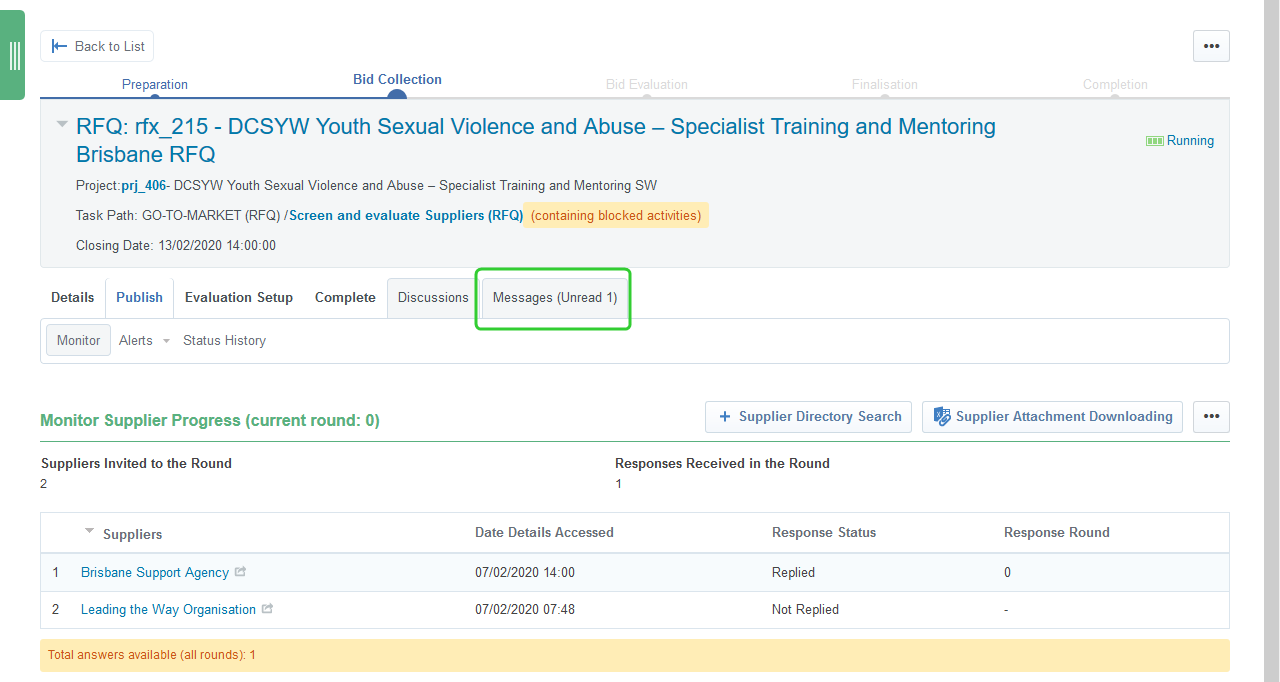
Click the Messages tab
Tip The unread messages count lets you know that you have a new message.
-
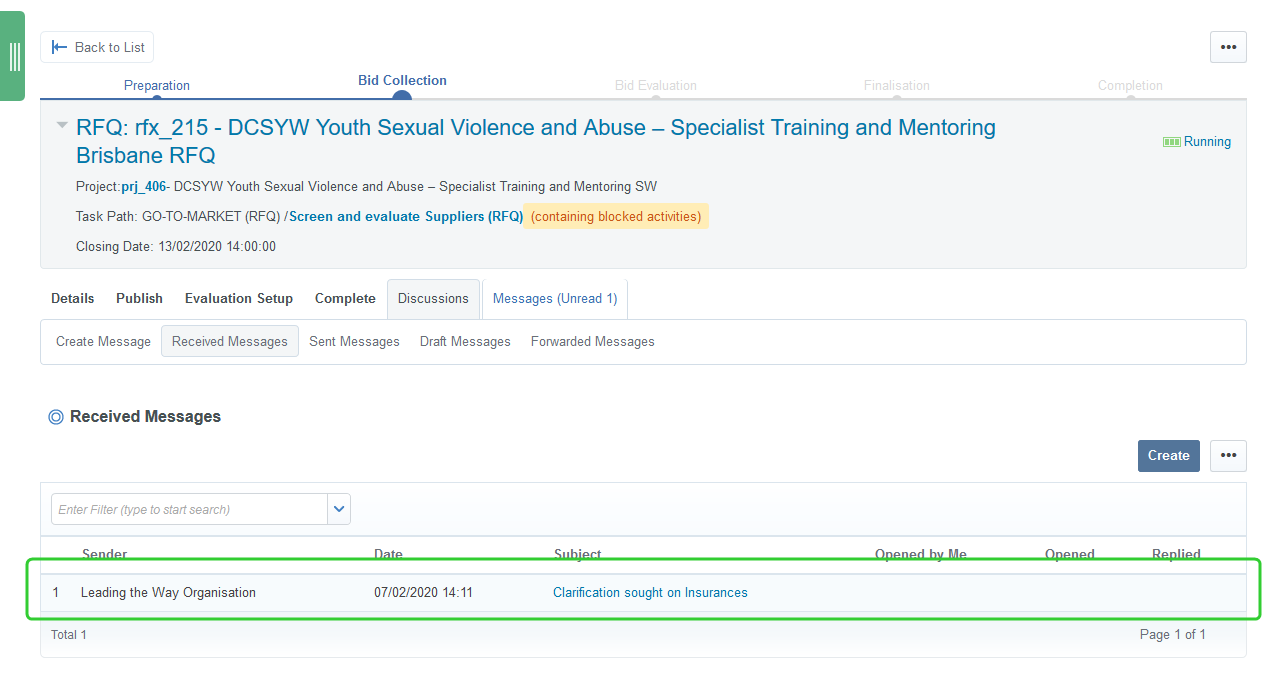
Click Received Messages

-
Select the message you want to respond to.
-
Click Reply to create a response to the message
Tip You can click Forward to forward the message to an email address outside P2i.

-
Enter your response in the My Messages field.
Tip Select Yes under Broadcast Message to send the reply to all recipients. The original message you received from the Supplier will not be visible to the other Suppliers unless you copy and paste it into your reply.
-
Click Send Message
